Please make sure to read the Getting Started and Download and Setup sections — they cover a lot of the basics.

Subscription

See the Subscription and Pricing information page for full details.

Use the Pricing or Buy Subscription link in the left navigation bar.

Use My Account or the 'Dashboard / Account' link in the left navigation bar.

You can have up to 3 members of the same household (primary user + 2 family members) use the same subscription at no extra cost. They can use different computers and logins, but must reside in the same household.

Use this form or the 'Support / Family Subscription' link in the left navigation bar. Please make sure that a BigRingVR account with the email address of your family member is created before submitting a request — we cannot add an account to your subscription if it does not yet exist.

Major credit cards and PayPal. Payment with BigRingVR is always 100% secure. We encrypt your data with an SSL connection and never save credit card details.

Go to My Account or the 'Dashboard / Account' link in the left navigation bar and click the Cancel Subscription button.

No problem! You can continue to use BigRingVR until the end of your current billing period. Use My Account or the 'Dashboard / Account' link in the left navigation bar to see your subscription details.

No, it will be charged automatically each month.

You can effectively pause any time: cancel when you're not riding (you keep access until the end of your paid period), then start a new subscription whenever you're ready to ride again. There's no penalty for stopping and restarting.

No — rides you recorded yourself are always free to use. A subscription is only needed to stream our library of web rides.

No, you will need a subscription to stream in real-time or to use downloaded rides.

Yes — you can upgrade from Monthly to 6-Month or Annual, or from 6-Month to Annual, directly from your My Account page. The upgrade takes effect immediately and you are only charged the difference for the remaining days on your current plan. For example, if you switch to Annual with two weeks left on your monthly plan, those two weeks are credited and you pay the annual fee minus that amount. Your billing cycle restarts from the day you upgrade.

Account and Trial

Yes, try it free for 14 days — no credit card required. Sign up here.
The trial starts when you create a BigRingVR account. If you signed up but didn't have a chance to ride during the trial window, please send us an email and we can extend it.

Make sure you create a BigRingVR account on the website before trying to sign in to the application. It only takes a couple of minutes.

This may be because you have cookies disabled (required by Google) or are using an ad blocker. We don't have any ads on our website, so temporarily disabling the ad blocker or enabling cookies should fix the problem.

You can permanently delete your BigRingVR account and personal data at any time. If you have an active subscription, please cancel it first so you are not billed again. When you delete your account we remove your profile, ride history and settings; we keep only a limited set of financial records that we are required to retain by law (for example, payment records for tax and billing-dispute purposes).
To get started, visit our Delete Account page.

Video, Download and Streaming

That depends on your hardware and internet connection. We stream in 4K, 1080p and 720p. Rides available in 4K show a '4K UHD' badge in the ride grid. Since version 8.0 video playback is hardware-accelerated (it uses your graphics card), so even 4K plays smoothly while keeping your computer cooler and quieter on long rides. More information can be found here. Also check out some of our demo videos.

Use the highest quality your computer and connection can handle. Since version 8.0 the video is hardware-accelerated, so most computers from the last few years handle 1080p easily and reasonably modern machines handle 4K well. 4K uses roughly 3–4× more bandwidth than 1080p, so a fast connection — or downloading the ride first — helps. If video stutters, step down one level. The easiest option is to run the automatic test that measures your connection speed and graphics performance and picks the best setting for you (available in Preferences and in the first-run setup wizard).

If your internet connection is fast enough for real-time streaming, there is no need to download the ride.

If your internet connection isn't fast enough and you get "buffer low" messages while streaming, use the download option. Downloading is also useful for higher-quality playback: if you want to ride in 1080p or 4K but your connection is only fast enough for a lower quality, select the quality you want first, then download the ride so it plays smoothly.

Click the checkbox 'Only show downloaded rides' in the top-left corner of the app.

In Preferences / Videos, set the video quality to 4K. Rides available in 4K show a '4K UHD' badge in the ride grid, and when you start a badged ride the 4K version plays automatically. 4K uses more bandwidth than 1080p, so a fast connection — or downloading the ride first — is recommended, and it looks best on a large screen or TV.

Running the Application

Very likely — BigRingVR controls a wide range of smart trainers over both ANT+ (FE-C) and Bluetooth (FTMS or Tacx FE-C), including Wahoo, Tacx, Elite, Saris, BKool, Wattbike and JetBlack. See the supported trainers list for details.

If your trainer supports the ANT+ FE-C protocol, or Bluetooth (the standard FTMS protocol or Tacx's FE-C-over-Bluetooth), it will work with the BigRingVR app.

Yes. As of version 8.0, BigRingVR fully supports Bluetooth (BLE) on both Windows and Mac. You can connect sensors and trainers over Bluetooth, ANT+, or a mix of the two — for example an ANT+ heart-rate strap together with a Bluetooth power meter and smart trainer. For smart trainers we support the standard FTMS protocol as well as Tacx's FE-C-over-Bluetooth, so Tacx NEO trainers can be controlled over Bluetooth too. For step-by-step pairing, see Using BigRingVR.

BigRingVR runs on Windows and Mac (including native Apple Silicon). Since version 8.0 the video is hardware-accelerated (it uses your graphics card), so most computers from roughly the last 3–4 years play 1080p easily and reasonably modern machines handle 4K well. 4K uses about 3–4× more bandwidth than 1080p and benefits from a modern GPU. If you're not sure, run the automatic video-quality test (in Preferences, or the first-run setup wizard) and BigRingVR will measure your connection and graphics performance and pick the best setting. See the recommended requirements for details.

Rides are saved in the Big-Ring\Rides folder under your Documents folder. As of version 8.0 they're saved as FIT files (.fit) by default. If you also want the older TCX format, set File format to “FIT and TCX” in Preferences / General.

Yes. As of version 8.0, BigRingVR records rides as FIT — the compact, modern format used by Garmin, Strava and most cycling platforms. FIT files are far smaller than the old TCX format (often around 30× smaller) yet hold more detail, so uploads to Strava, TrainingPeaks and Intervals.icu are faster. If you ride dual-sided power-meter pedals, your left/right power balance is recorded too. If your heart-rate strap provides beat-to-beat (RR) data — all ANT+ monitors and most Bluetooth straps do — your heart-rate variability (HRV) is recorded to the FIT file as well, so TrainingPeaks and Intervals.icu can analyze it. You can still keep a TCX copy via the File format option in Preferences / General.

Yes, if you ride dual-sided power-meter pedals, over ANT+ or Bluetooth. Pair the pedals as your power meter in Preferences / Sensors, and keep your smart trainer as the smart trainer so your power comes from the pedals. To see the split while you ride, choose the Training layout in Preferences / Ride Experience / Metrics layout. Your average appears in the End Ride summary and is saved to your FIT file for Strava, TrainingPeaks and Intervals.icu. Single-sided meters and smart trainers can't measure balance. If your pedals show up as two separate entries over Bluetooth, see Using BigRingVR.

The Tacx Genius T2021 is not a Tacx Genius Smart — it is one of the older models. It communicates with computer software using a proprietary, secret protocol rather than ANT+ FE-C (the ANT+ trainer standard). This means it cannot be used with BigRingVR.

Yes. The Kickr Climb is controlled by the Kickr, not by BigRingVR. The app sends the slope to the Kickr, which then sends it to the Climb.

Yes. Road Feel works on rides with a surface other than normal asphalt, such as cobbles or gravel. Enable 'Enable TACX Road Feel' in Preferences / Smart Trainer. It works over ANT+ and, as of version 8.0, over Bluetooth on NEO trainers connected using Tacx's FE-C protocol (it is not available over plain FTMS). Try it on rides like St. Gotthard Pass and Tour of Flanders (Part 1), among others.

It is very easy to create a custom course. On the main app screen, pick a ride then click the Create a new course button above the elevation profile. Drag the sliders to select your portion, give your custom course a name, and click Save. You will then see both the complete course and your custom course in the courses box.

Yes. In Preferences, create a sensor configuration that uses your trainer as a power meter but not as a controllable smart trainer: set the smart trainer to "Don't use" and set the power meter to your trainer's power channel. This works over both ANT+ and Bluetooth.

Yes, but only for loop rides — look for rides with "Loop" in the name (there are about 20). After selecting a loop ride, check the Ride Multiple Laps option in the top-left corner. To set this as the default, check 'Ride Multiple Laps for loop rides' in Preferences / General.

To ride several different routes back-to-back (not just laps of one loop), use Ride Queues — see the question below.

Setting "Trainer Difficulty" lower than 100% will decrease resistance on climbs. For instance, at 50% a grade of 10% is communicated to the trainer as 5%. BigRingVR's speed calculations still use the original grades, so it will not make you faster — you can think of it as virtual low gears. The default setting is 100%.

If Garmin or Suunto applications (Garmin Express, Suunto Movescount, etc.) are running in the background, they may block the USB port and ANT+ communication. Closing them should resolve the issue. If that does not help, remove and re-insert the ANT+ USB stick to reset the ANT+ channel.

Alternatively, since version 8.0 you can connect your trainer and sensors over Bluetooth instead, which needs no ANT+ dongle.

Unlike Windows 10, Windows 11 does not automatically install proper ANT+ drivers. You can find and install them here.

Alternatively, connect over Bluetooth (version 8.0 and later), which needs no driver.

This issue may have several causes:

1. The ANT+ dongle you are using is not compatible with BigRingVR. We are aware of two brands — Anself and Cycplus — that are problematic because they do not support the complete ANT standard. You can read more here.
2. Another program may be occupying the dongle. Make sure all programs that might be using it (e.g. Garmin Express, Zwift) are closed.
3. The USB port the dongle is in may not provide enough power — try a different USB port.

As of version 8.0 you can also connect these devices over Bluetooth, which avoids ANT+ dongle issues entirely.

Not all BKool trainers have ANT+ FE-C enabled by default, which is required for ANT+ control in BigRingVR. You can use the BKool software to check and enable ANT+ FE-C if necessary — see this support article. If your BKool supports Bluetooth (FTMS), you can also connect it over Bluetooth in version 8.0 and later.

Some anti-virus applications may cause this error. Temporarily disabling them should resolve the issue. Google sign-in only needs to be done once, so there should be no issue for subsequent sign-ins when your anti-virus is re-enabled.

Yes, but not all. Some RLV publishers (e.g. TACX) encrypt their control files, so they cannot be used in BigRingVR. If your RLV comes with a GPX, RLV, or PGMF file, it can be used. Note that only rides with GPX files have GPS data and will show correctly on the map when uploaded to Strava — others will only show ride metrics without a map. The location of your local rides can be configured in Preferences / Videos.

The ride screen is fully keyboard-controllable, so you can drive it from anything that sends keystrokes. During a ride, press H to pop up the list of shortcuts — common ones are Space (pause / resume), S (screenshot), F (fullscreen), Esc (stop), and . / , to raise or lower resistance.

To do this from your phone, some riders use an app that turns the phone into a Bluetooth keyboard, such as Serverless Bluetooth Keyboard. This is an unofficial workaround rather than a built-in feature: it requires your phone to pair with your computer as a Bluetooth keyboard, which works on most setups but depends on your phone and operating system.

When your activity is saved, we look at your 20-minute maximum power × 0.95. If this number is higher than your existing FTP, we update it.

Yes, for downloaded rides. Sign in once while you're online (your login stays valid for 24 hours) and download the ride in advance — then you can ride it fully offline. Live-streamed rides still need a connection.

This is a privacy feature that prevents others from riding against your previous efforts or riding with you in real-time. You can change this setting in Preferences at the bottom of the Account page. When activity sharing is on:

1. Other people will be able to ride against / with your efforts.
2. You will be able to ride against / with efforts of others.
3. You will be able to ride together with others in a live ride.

Not through the app yet — but you can still share your own rides: host the RLV on a cloud or file-sharing service and others can download it and run it locally in BigRingVR.

For GPX files, please make sure that:
1. The video file and control file have the same name, except for their extension (e.g. my_local_ride.mp4 and my_local_ride.gpx).
2. Supported codecs are H.264 and H.265; supported containers are MP4 and AVI.
3. The control file must be a GPX, RLV, or PGMF file.
4. The GPX file must contain a track, and each track point must include a timestamp.
5. The GPX track and video file must start at the same location so the video and GPS track are in sync.

Link your Strava, TrainingPeaks or Intervals.icu account in Preferences / Integrations. When your ride is saved it is automatically uploaded to your linked accounts. For Intervals.icu, paste an API key from your intervals.icu profile → Developer Settings, then use the Test Connection button in Preferences / Integrations. See Using BigRingVR for the full walkthrough.

Yes. Configure 'Download location' in Preferences / Video to point to your external drive. Make sure your external drive is always mounted with the same drive letter (e.g. drive F) that you have configured.

Screenshots are saved in the Big-Ring\Screenshots folder under your Documents folder. Unfortunately, we cannot automatically upload them to Strava, as Strava does not offer that capability in their public API. To add images to your Strava ride: open your ride in Strava, click 'Edit Activity', then drag images to the Photos section.

To join a challenge, simply complete one of the rides in the challenge. Your result will automatically be added to the challenge leaderboard.

Not yet, but you can use the scheduled rides feature. Add rides to your schedule (click the bell icon) on the Challenge page. In the app, choose 'My scheduled rides' from the 'Show' dropdown. Once you complete a ride, it is automatically removed from your schedule, giving you a clear picture of which rides remain.

Unfortunately, no. A ride will appear on the leaderboard and be marked as completed only if it is done as a full ride in a single attempt.

When you ride multiple laps of a loop ride, it will not appear on the leaderboard. To disable the 'Multiple Laps' option, uncheck 'Ride Multiple Laps' in the top-left corner after selecting a ride. To configure this as the default, use the 'Ride Multiple Laps for loop rides' option in Preferences / General.

Turn on Build a Queue in the top-left of the ride catalog, click the rides you want in the order you'd like to ride them (reorder or remove them before you start), then press Start Queue. BigRingVR rides them one after another and auto-advances the moment you cross each finish line — there's no need to stop pedaling. Each ride is still saved as its own separate activity on BigRingVR, so your ride history and leaderboard placings stay per-ride.

On Strava, TrainingPeaks and Intervals.icu it works the other way: when the rides genuinely join up on the road — each one starting within 50 m of where the previous finished — BigRingVR offers to upload the whole run as a single activity, so a route you rode in one continuous effort appears as one ride instead of several. Decline and you get one activity per ride, as before.

The join is re-checked against the track you actually rode, not just the rides you queued — so if you stop partway through one of them, the run is split at that point instead of being merged with a straight line drawn across the map. Either way a “Queue complete” summary shows your combined totals at the end.

Open the sensor pairing screen (Preferences / Sensors, or the first-run setup wizard). It scans for ANT+ and Bluetooth devices side by side, filtered to real cycling sensors. Pick each one — heart rate, power, cadence, smart trainer — from either protocol; you can freely mix them, for example an ANT+ heart-rate strap with a Bluetooth power meter and a Bluetooth smart trainer. The sensor icons in the top bar turn green as each device connects.

Yes. NEO trainers use Tacx's FE-C-over-Bluetooth protocol rather than the standard FTMS. When you pair over Bluetooth your NEO may appear twice — choose the entry labelled '(Tacx road feel)' to get full resistance control and Road Feel. You can also connect a NEO over ANT+.

Yes on both counts. Version 8.0 is a universal Mac build that runs natively on Apple Silicon (M-series) Macs — no Rosetta needed — as well as on Intel Macs. ANT+ is supported on Mac too (with a USB ANT+ dongle), alongside Bluetooth.

No. Version 8.0 keeps itself up to date — new builds install automatically in the background, so after your first install you won't need to download an installer again.

Yes. Use the theme picker in the top bar to choose from nine light and dark themes, including Trailblazer (the classic lime-on-charcoal BigRingVR look). For language, go to Preferences / General / Language — BigRingVR is available in English, German, Dutch, French, Spanish and Italian, and the change takes effect the next time you launch the app.

Yes. Preferences → Ride Experience has three in-ride looks: Modern, Classic and Daylight. Modern and Classic are both light-on-dark; Daylight is dark text on a pale panel, which reads better in a bright room or a sunlit pain cave.

The theme is purely visual — it never changes which metrics appear or where they sit, which are the two settings beside it. This is also separate from the theme picker in the top bar, which styles the rest of the application rather than the ride screen.

If a Bluetooth sensor in your configuration hasn't connected for 10 rides in a row, BigRingVR offers to remove it. Configurations outlive hardware — a cadence sensor paired years ago stays in the list for ever, and the app keeps scanning for it, which costs battery and slows down reconnecting the sensors you do use.

Choose Remove it to tidy up, Not now to be asked again later, or Never remind me to keep the sensor and stop the prompt. Nothing is ever removed without your say-so.

BigRingVR only judges a sensor on rides where at least one other sensor connected — so browsing the catalog with your trainer switched off never counts against anything. ANT+ sensors aren't included.

At the end of each ride the summary shows: Normalized Power (NP) — an estimate of the steady power that would have cost you the same effort as your variable ride; Intensity Factor (IF) — your NP divided by your FTP, i.e. how hard the ride was relative to your threshold; and Training Stress Score (TSS) — how much training load the ride added, combining intensity and duration. The summary also shows peak power, time in power zones, your elevation profile and your leaderboard placing.

Go to Preferences / General / Diagnostics, type a short description of the problem in the box, then click Upload Logs. BigRingVR bundles your logs and sends them to us along with your note, so there's no need to hunt for files.

We're actively working on it. Android is currently in beta testing, the iPhone / iPad version is at an early alpha stage, and we've recently started work on an Apple TV version. None of these are publicly available yet — for now BigRingVR runs on Windows and Mac. Keep an eye on our newsletter and the BigRingVR Facebook group for announcements as each platform opens up.

No. BigRingVR is digitally signed with a Microsoft-issued certificate. What you're seeing is Smart App Control, a Windows 11 feature that also weighs how widely recognised a program is — and BigRingVR 8 is new, so it hasn't built that recognition yet. Windows blocks it as a precaution, not because anything is wrong with the file.

Smart App Control can't allow a single app, so the only way past it is to switch it off, under Windows Security → App & browser control. It's a one-way setting — Windows doesn't offer a way to switch it back on later — while Microsoft Defender, SmartScreen and the firewall all carry on as normal. Full steps are on the download page.

Almost always radio interference rather than a fault with the sensor or the app. ANT+ and Bluetooth share the 2.4 GHz band with Wi-Fi and a lot of household electronics.

Three fixes, in the order most likely to help:

Put the ANT+ dongle on a USB extension cable. USB 3 ports emit noise across the frequencies ANT+ uses, so a dongle plugged straight into the computer is often swamped. Moving it a foot or two away — and closer to the bike — fixes more dropouts than anything else.

Switch your computer to the 5 GHz Wi-Fi network, if the signal there is strong. That removes your Wi-Fi from the band your sensors use, and gives 4K video more bandwidth. If your setup is far from the router, though, a solid 2.4 GHz connection beats a weak 5 GHz one.

On 2.4 GHz, prefer router channel 1 or 6. ANT+ transmits on a fixed 2457 MHz, which sits inside Wi-Fi channel 11. Bluetooth hops between frequencies and copes better — so if ANT+ sensors drop while Bluetooth ones hold, that's the likely reason.

Full details are on the Using BigRingVR page.

Using the Website

You can add rides to scheduled / favorites on the rides page. Make sure you are logged in — in the rightmost column, click the Star icon (favorite) or Bell icon (scheduled).

You can also add rides to scheduled / favorites on the individual Ride page.
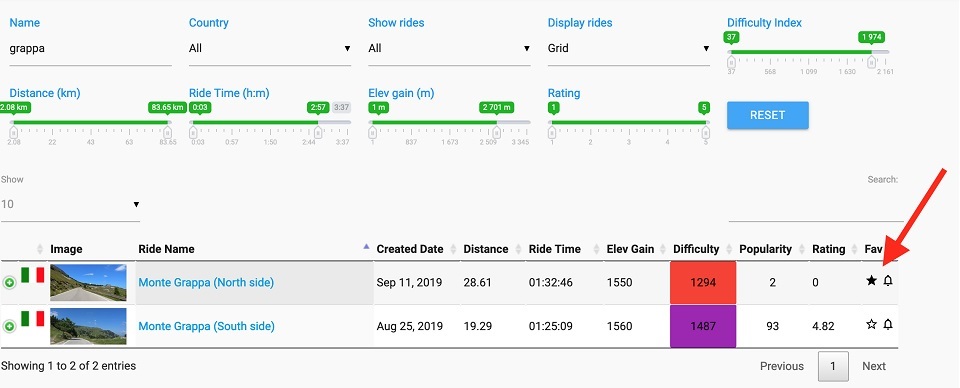
Favorite and scheduled icons

To filter your favorite or scheduled rides in the app, use the 'Show' dropdown in the top-left corner of the main screen.

Use the 'Dashboard / My Rides' link in the left navigation bar, or go directly to My Rides. Click on the Date link to see details of an individual activity.

Navigate to My Rides. In the rightmost column you can delete an activity permanently (click the delete icon) or make it private (click the lock icon), so it won't appear on the ride leaderboard. Please note that once an activity is deleted, there is no way to restore it. You can, however, toggle your activity between private and public at any time.

Go to My Account or the 'Dashboard / Account' link in the left navigation bar, select the Settings tab, and turn individual notification options on or off. If you want to use an alternative email address for notifications rather than your main Google account email, you can add it in the Settings tab.

Support

Please join our public BigRingVR Group on Facebook. Connect with fellow BigRingers, share and learn, and get help from fellow cyclists!

Join our public BigRingVR Group on Facebook to get help from fellow riders.
If you come across any issues, please report them here.
You can also contact us by email.
We would highly appreciate your Feedback.